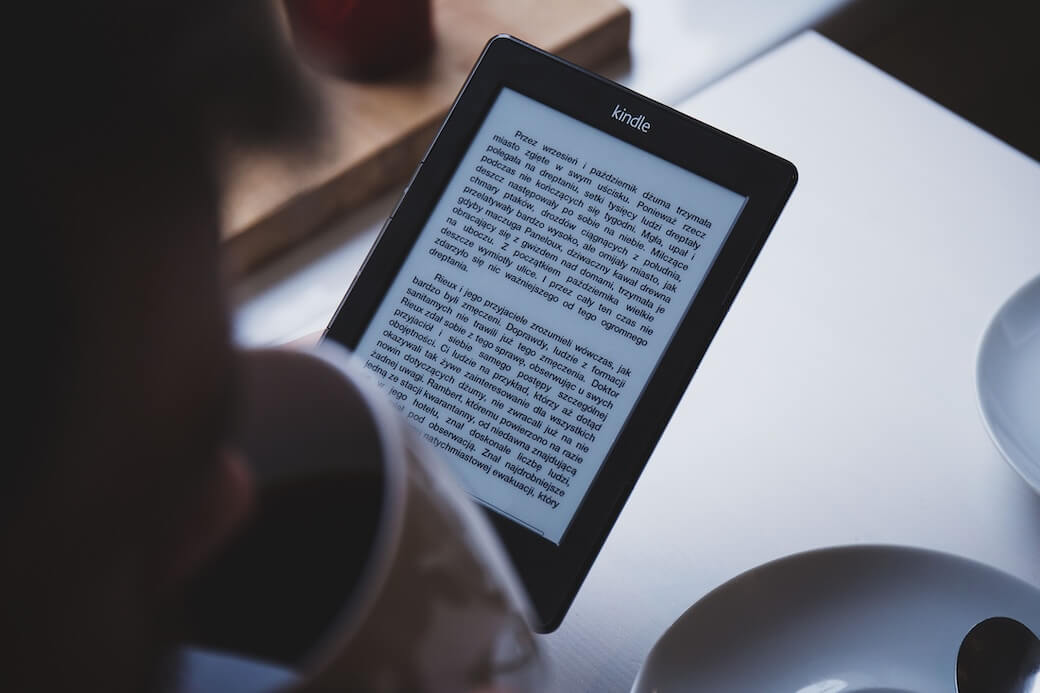
Publishing on Amazon KDP is free, and the platform itself is straightforward once you know the sequence. The parts that take time are the ones that happen before you ever open a KDP account: the finished, edited manuscript and a cover that meets the technical requirements. This is the process once both of those are ready.
Step 1: Set Up Your Account
Go to kdp.amazon.com and sign in with an Amazon account, or create one. You’ll need to complete:
Author profile. Your legal name (or a registered pen name), address, and contact details.
Tax interview. A short online form, a W-9 for US authors, a W-8BEN for authors outside the US. Required before KDP can pay you any royalties at all.
Bank details. Where royalty payments land.
Identity verification. KDP requires ID verification for new accounts, a government-issued ID, and approval can take 24 to 48 hours. Worth doing this step well before you plan to publish, not the night before.
Step 2: Prepare Your Files
Manuscript formatting. Fonts embedded, standard readable fonts (Georgia, Times New Roman, and similar, avoid decorative fonts that may not render correctly on all Kindle devices), no manual page breaks except before new chapters, paragraph styles rather than manual spacing, images at 300 DPI minimum. Print files need specific margins: at least 0.25 inches on the outside edges, and an inside gutter margin that increases with page count, roughly 0.375 inches for books under 150 pages, up to 0.875 inches for books over 700. Page count needs to land on an even number for print, add a blank page at the end if needed.
Cover file. Minimum 1,000 pixels on the longest side, an exact 1.6:1 aspect ratio, 300 DPI for print covers, saved as JPG or TIFF.
Writing Desk tip: The Formatter exports directly to KDP-ready files from your finished manuscript, correct margins, embedded fonts, and proper front and back matter included, so this step is largely handled before you ever reach the KDP upload screen.
Step 3: Upload and Fill In Your Book Details
Title and subtitle. Your title is effectively permanent once published, changing it later is possible but disruptive to any existing reviews and rankings. Include relevant keywords naturally, don’t force them in at the cost of a title that reads badly.
Description. This is your sales copy. It needs to hook a browsing reader in the first couple of lines, since that’s often all that’s visible before someone has to click “read more.”
Keywords. Seven keyword slots. Think in terms of what a reader would type into Amazon’s search bar looking for a book like yours, not generic genre terms everyone else is also using.
Categories. Two categories, chosen to accurately match your book rather than chasing the categories with the least competition. A mismatched category can hurt more than it helps once readers start leaving reviews that mention the mismatch.
Step 4: Set Pricing and Royalties
KDP offers two royalty tiers. The 70% rate requires pricing your ebook between $2.99 and $9.99, and enrolling the book in the relevant territories. Price outside that window, or opt out of certain territories, and you drop to the 35% rate. The 70% tier at a competitive price point within that band is the better default for fiction.
Print royalties work differently: your printing cost is deducted automatically from each sale, calculated from page count and format, before you receive the remaining royalty.
Step 5: Preview Before You Publish
Use KDP’s built-in previewer to check formatting on an actual simulated device before publishing, not just in your writing software. What looks correct in your manuscript editor doesn’t always render identically on a Kindle.
Order a physical proof copy if you’re publishing in print. Catching a margin or formatting issue in a proof you’re holding is a much better experience than catching it after a reader flags it in a review.
A Few Things That Catch First-Time Authors Out
AI disclosure. KDP requires disclosure if AI generated your text, cover images, or interior illustrations. Using AI tools to edit, proofread, or suggest ideas doesn’t require disclosure, that’s classed as AI-assisted rather than AI-generated. The disclosure itself is internal to Amazon’s records and isn’t shown to buyers, but failing to disclose when required can result in the book being removed.
Categories and keywords aren’t permanent. Unlike your title, these can be adjusted after publication if your initial choices aren’t working. Worth revisiting once you have real sales data to look at.
The free ISBN ties the book to KDP specifically. If you might want to distribute beyond Amazon later, under your own imprint, buying your own ISBN from the start avoids needing to re-publish under a new one down the line.
Final Words
The KDP upload process itself is a form to fill in correctly, not a hard technical barrier. The actual work, the finished manuscript, the edit, the cover, the formatting, all happens before this point. Get those right and the publishing step itself is a matter of hours, not weeks.
Related reading:
- Cost of Self-Publishing: What It Takes to Budget For
- Designing Your Book Cover for Self-Publishing
- Self-Publishing Launch Checklist
Choosing writing software? See the best novel writing software.
The writing app built for novelists.
Plot, draft, edit, and format your manuscript in one private, local app for Mac. Free to download. Nothing leaves your Mac unless you choose to sync it.
macOS 13 Ventura or later · No account required