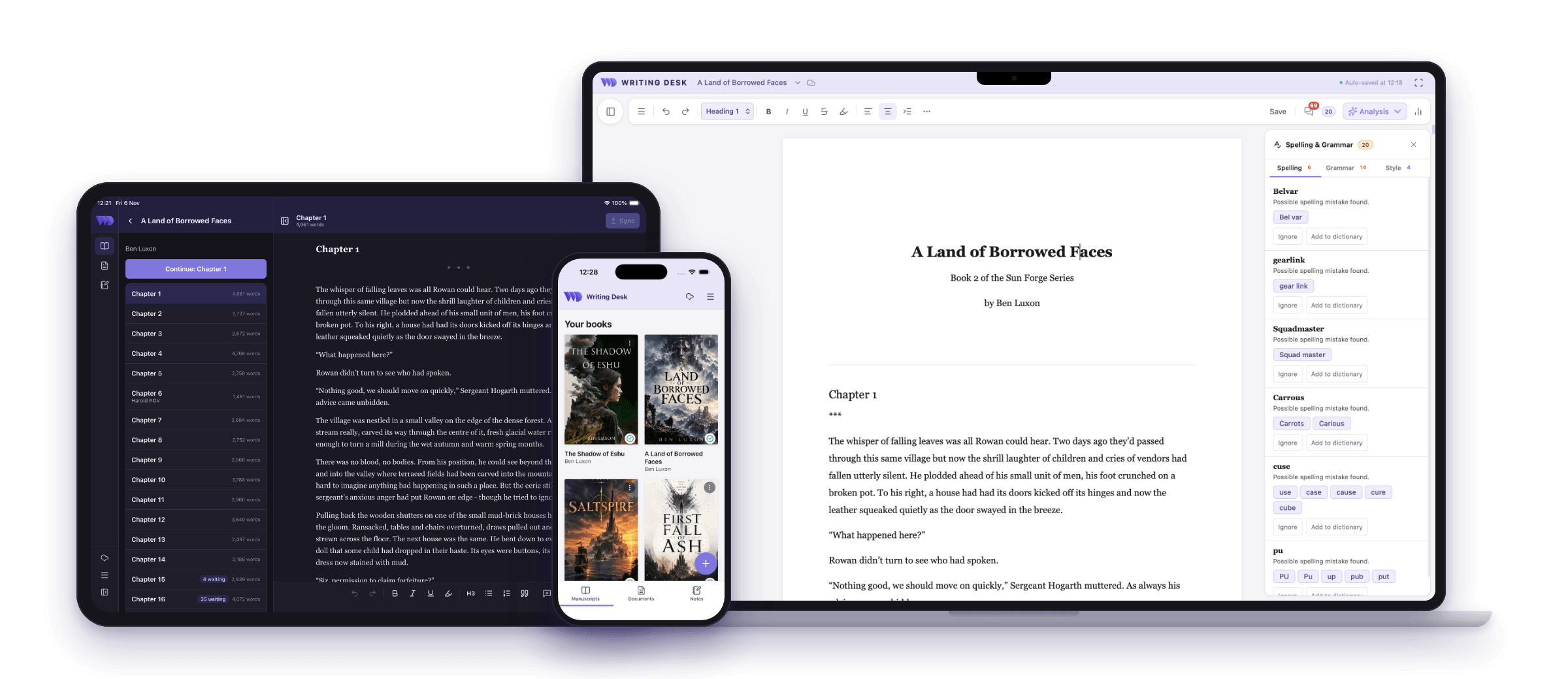
If you’re anything like me, writing can be something of a messy process. Ideas come when they come, and often you’re snatching moments of your day on the train or in a waiting room to make edits or add scenes.
Writing Desk is now a novel writing app for iPhone and iPad as well as Mac. It works as a companion to the Mac app: you choose which manuscripts or documents sync, and you can edit them on the go. Your Mac stays the home of your work.
Get Writing Desk on the App Store
Keep writing your novel wherever you are
Choose a book on your Mac, switch sync on, and it appears on your phone. Read it chapter by chapter, move between chapters with previous and next links, edit, keep writing, and leave comments on the go. Light and dark mode are both built in.
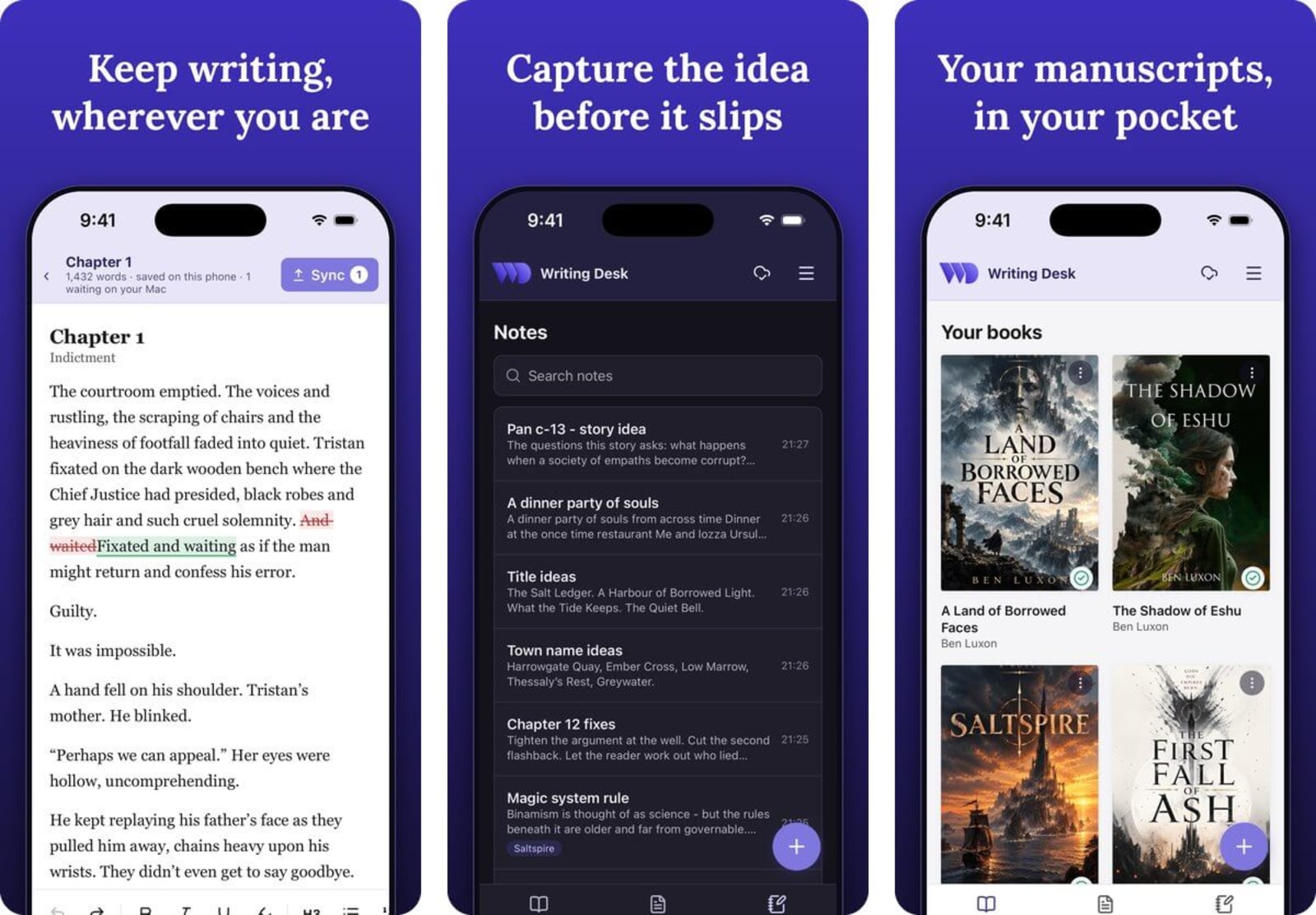
Edit anywhere, review at your desk
Changes you make to a manuscript on your phone arrive on your Mac as suggestions, highlighted in the text. You read each one and accept or reject it. Nothing in your manuscript changes until you say so.
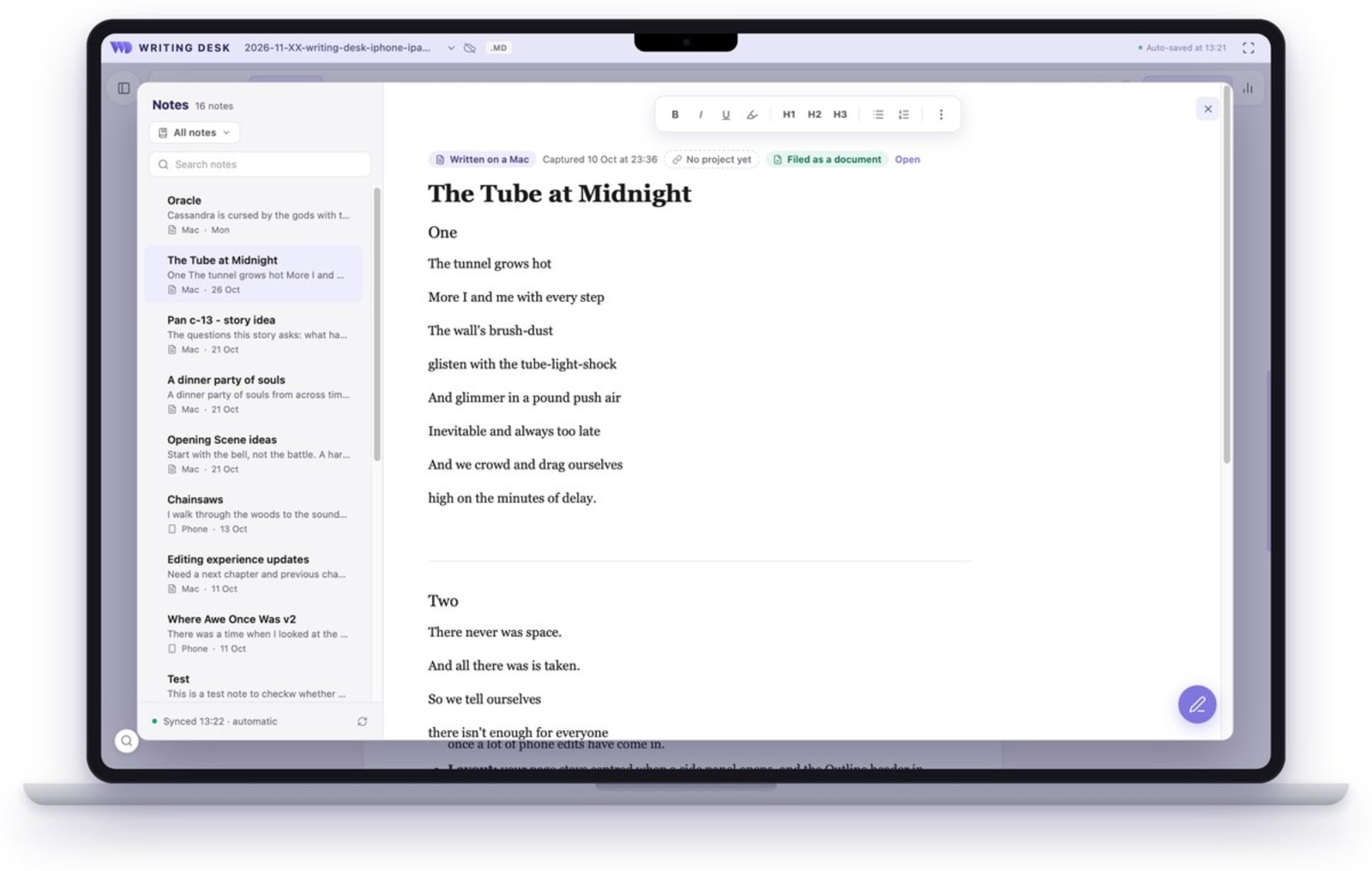
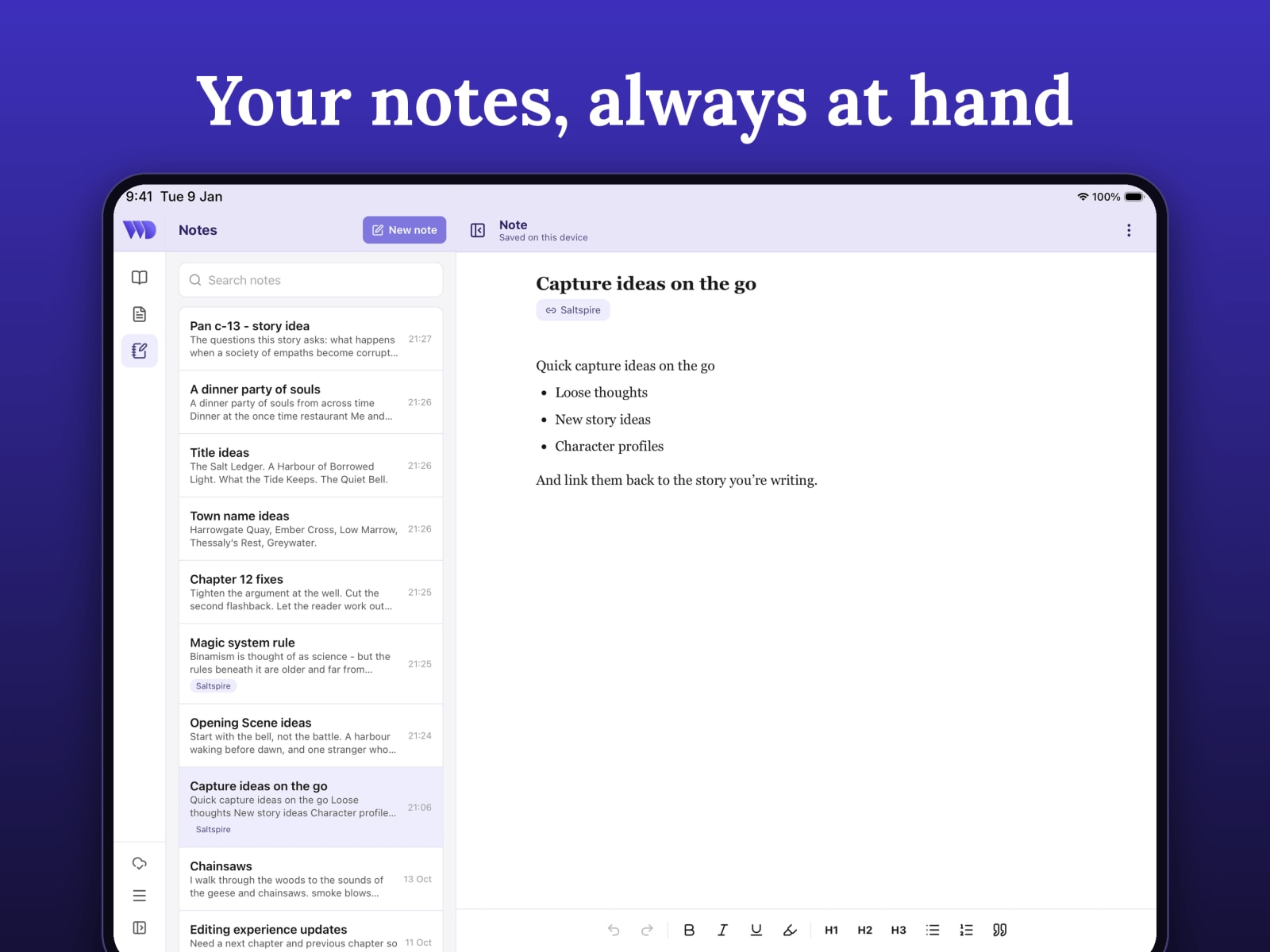
Capture ideas and develop your story
Notes drafted on the app sync automatically to your Mac (and vice versa), so your ideas never get lost or forgotten. Plus you can:
- Link a note to a project so it appears with that project’s notes.
- Turn a note into a full document to develop further, and then link it as a reference file to a project.
- Keep as many notes as you like. There is no limit.
On the Mac, open Notes from the file name menu in the top bar, or from the Notes button on the home screen.
Sync documents
You can sync any document you choose from your Mac, so you can pick up your draft where you left off. On the train, in the waiting room. Nothing syncs until you choose it.
- Markdown documents sync both ways. If you change different paragraphs on each device, they merge automatically, with an Undo card. If you change the same paragraph, you choose which version to keep.
- Standalone .wddoc files bring phone edits back as suggestions you accept or reject.
- Word files can be edited on your phone too. You see a one-time reminder that complex formatting may change, and Writing Desk keeps a backup copy on your Mac.
Works offline
Read, write, comment and capture notes on your iPhone and iPad without a connection. When you come back online, your changes sync automatically back to your Mac.
What else is new in this release
The Mac update that goes with the app has a round of fixes and improvements too.
- Links: the link box opens under the text you selected, including when you use ⌘K. Clicking linked text opens a small box where you can edit the link text, change the address, remove the link or open it, instead of jumping straight to your browser.
- Word tables: tables now come in as proper tables when you open a Word file, and export as real tables in Word and in Markdown.
- Page breaks: headings in Markdown and Word documents no longer force a page break when you export or print. The “each heading starts on a new page” switch is off by default for documents, and it now works in Word export.
- Editorial Review: documents get a Fiction and Non-fiction switch, remembered for each file. The panel is more compact, and “Who’s it for?” stays on one line until you click it.
- Comments panel: filter by suggestions or comments, and by chapter. This helps once a lot of phone edits have come in.
- Layout: your page stays centred when a side panel opens, and the Outline header in the document sidebar lines up with the toolbar.
- Notes: no more “(conflicted copy)” notes piling up when a note is edited on two devices.
Get started in four steps
- Update Writing Desk on your Mac. Open the app and it offers the update.
- Download Writing Desk from the App Store and sign in with your Writing Desk account.
- On your Mac, click the cloud icon beside the file name and switch sync on for a book or a document.
- Open the phone app. Your writing is there.
The free plan syncs 1 book and 30 documents. Paid plans raise both limits, and you can see the details at writingdeskapp.com/pricing/. New users get 30 days of the full program, with the same sync limits as the free plan.
What about Android?
The Android app is on its way. It follows once testing is complete, and an update will go out when it is ready.
Questions
The mobile app page has the overview, and the help centre has step-by-step guides for syncing, phone edits, notes and troubleshooting.
Writing Desk tip: Start on your phone with a note, then use Save as document on your Mac to turn it into a markdown file. When the piece grows, convert it into a project with a couple of clicks.

The writing app built for novelists.
Plot, draft, edit, and format your manuscript in one private, local app for Mac. Free to download. Nothing leaves your Mac unless you choose to sync it.
macOS 13 Ventura or later · No account required