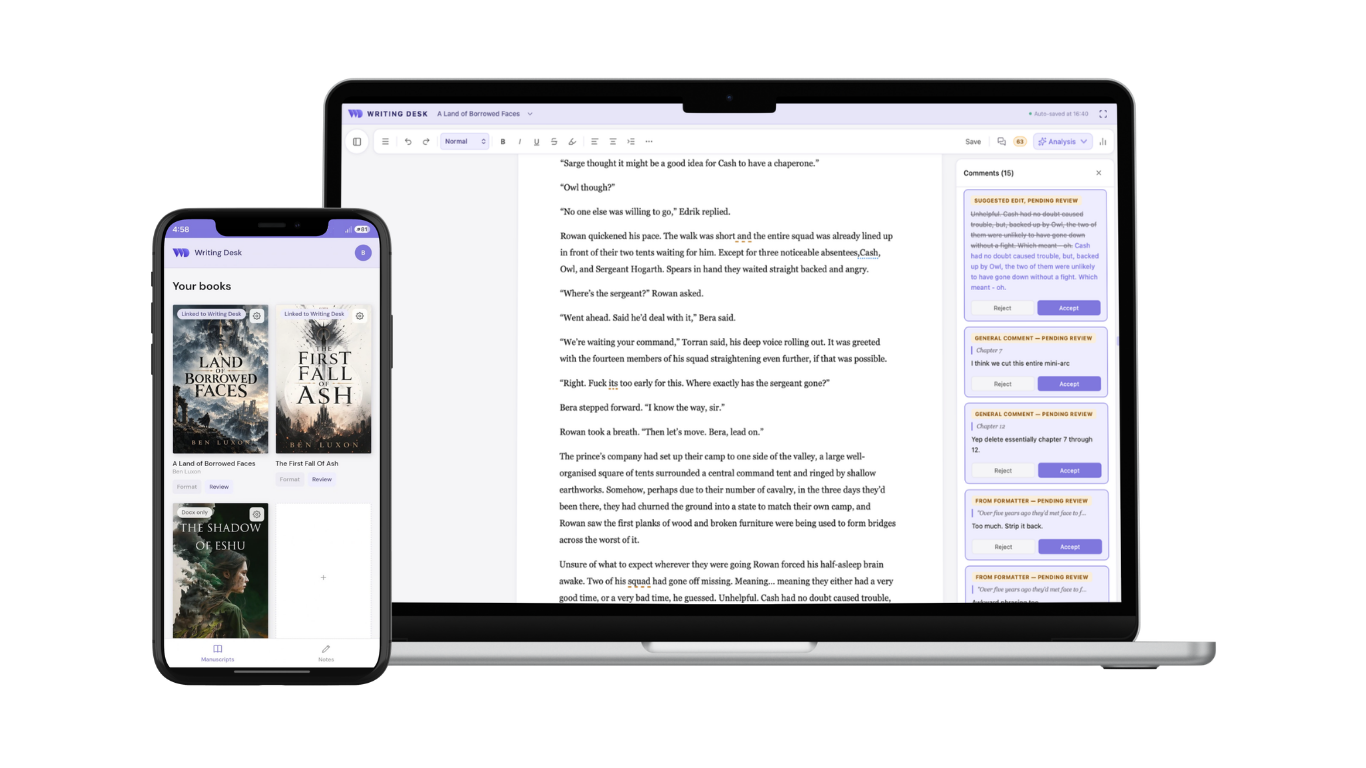
I built Writing Desk around the novel. Streamlining everything from plotting to publishing has been my goal to date. But if you’re anything like me, novel writing might be your passion, but it’s far from where you spend all of your writing time.
With this update, Writing Desk becomes a single place for you to manage all of your writing.
You can now write essays, posts and articles as Markdown documents, open and edit Word files, and get AI editorial feedback on non-fiction. And you can send your manuscript to the Formatter to review it and suggest edits on the go, using the Formatter web app on your phone.
To top it all off, the whole app has a calmer, cleaner feel, and we’ve added a whole range of keyboard shortcuts to make your writing life easier. More power and versatility, with less complexity.
This is our biggest release since launch. Here’s what’s new, and how to make the most of it.
Shorter writing now has a home
Not every piece of writing needs the full project architecture that Writing Desk’s core functionality is built around. Novels need chapters, planning boards and typesetting. A blog post, for example, just needs a clean page, a few headings and somewhere to keep your sources. Writing Desk now gives each format the space it needs.
Documents are Writing Desk’s home for shorter writing: essays, blog posts, newsletters, articles and notes. Each one is a plain Markdown file, so it opens in any other app and can be pasted straight into your blogging platform or website.
The Writing Desk document (.wddoc) remains the core document type for projects, giving you access to features like comments, the Story Plotter, structured resource sheets and more.
Open Projects on the home screen, and you’ll find two tabs. Projects holds your long-form work that needs structure and references. Documents holds everything else:
- Favourites keeps the documents you’ve opened recently, or marked as favourites, at the top.
- Documents shows your Writing Desk Documents folder. Create folders and documents here, and drag them around to keep things organised.
Click New Document to create a Markdown file, or New Project for a .wddoc project with all the bells and whistles.
A sidebar built for shorter pieces
Every document gets its own stripped-back sidebar. At the top, an Outline lists your headings, so you can see the shape of your piece and jump to any section. At the bottom, References holds the files, folders and links you’re drawing on: pin your research once, and it’s one click away every time you open the document.
Format as you type
If you already write in Markdown, you’ll feel at home. Type ## at the start of a line and it becomes a heading. Wrap a word in ** and it turns bold. Start a line with - and you’re writing a list.
These typing shortcuts work in every kind of document, not only Markdown files, so they’re there in your novel too. Choose Help → Markdown Reference for the full list.
Your Word files, as they are
Plenty of writing arrives as a Word (.docx) file: a draft from a co-author, a brief from a client, a manuscript you started years ago. Writing Desk now opens .docx files as they are. Edit them with all your usual tools, and they save back as Word files, ready to send on.
Headings, bold, italic, underline, lists, links and tables all carry across. Headings are saved with proper Word heading styles too, so they show up as headings when the file goes back to Word or Google Docs.
Send it out in Word, bring the edits back
Many editors and beta readers work in Word. Now you can send them your manuscript as a .docx and, when the edited file comes back, bring their changes straight into your project.
- Export your manuscript to Word from the menu.
- Share it with your editor or reader.
- When the edited file comes back, open it in Writing Desk.
Writing Desk recognises the file it came from and offers to merge the changes back.
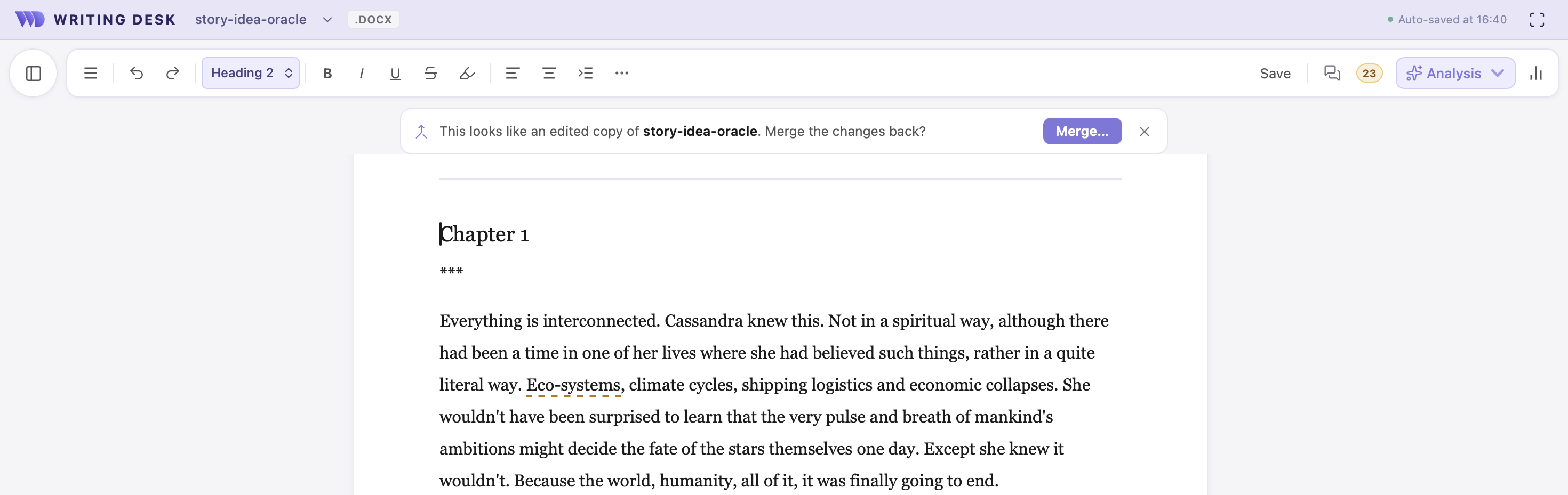
Before it merges, Writing Desk saves a copy of your previous version, so you can always go back. You’ll find it in Version History.
Editorial feedback for non-fiction
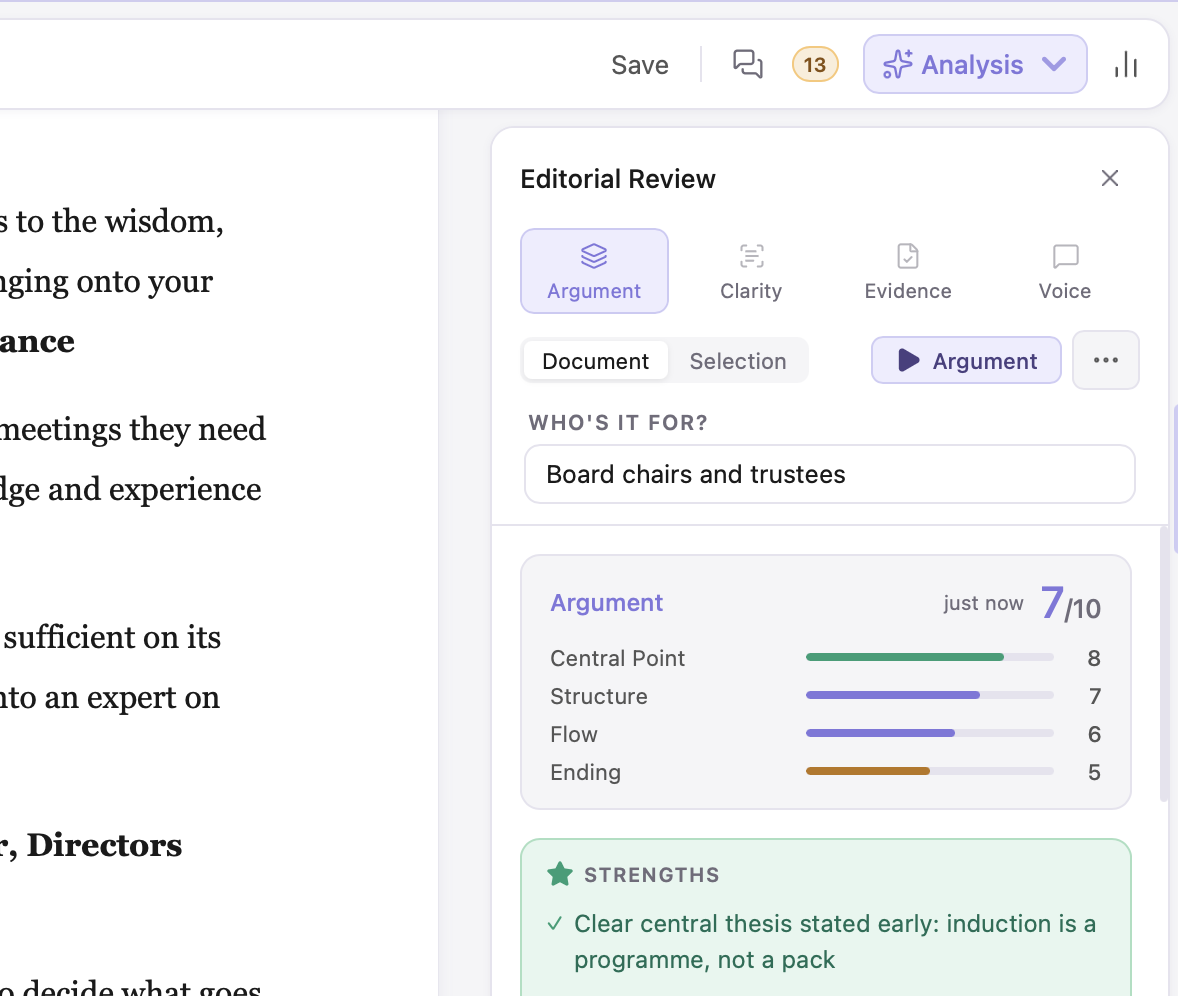
Editorial Review now works on your documents too, with four lenses built for non-fiction:
- Argument: whether your case holds together from start to finish.
- Clarity: where a reader might lose the thread.
- Evidence: claims that need more support.
- Voice: whether your tone stays consistent and suits your reader.
Tell it who the piece is for, and every lens reads it with that audience in mind. Run all four for a full review, or a single lens when you’re working on one thing. As always, our AI tools will never write prose on your behalf. Review the suggestions and decide which ones you want to act on or ignore.
When a piece grows into something bigger
Sometimes a short story keeps going, or an essay turns into the first chapter of a book. When that happens, turn the document into a project from the control at the bottom of the sidebar.
When you convert a Markdown or .docx file into a .wddoc project, you’ll get chapters, The Pad, Story Plotter, comments, chapter variants and version history.
Writing Desk copies your writing into the new project and leaves the original file exactly where it was, so nothing gets lost and you can easily go back to the original format if you need to.
Review your manuscript on the go
The Formatter now works on your phone. Read your manuscript on the train, leave comments, and suggest edits wherever you are.
Choose Send to Formatter from the menu in Writing Desk, then open the Formatter on your phone.
Top tip: add the Formatter to your phone’s home screen, so it opens like an app. Our help guide shows you how to do it on iPhone and Android.
Next time you sit down at your Mac, everything you added is waiting in the comments sidebar, ready for you to accept or reject.
Keep your hands on the keyboard
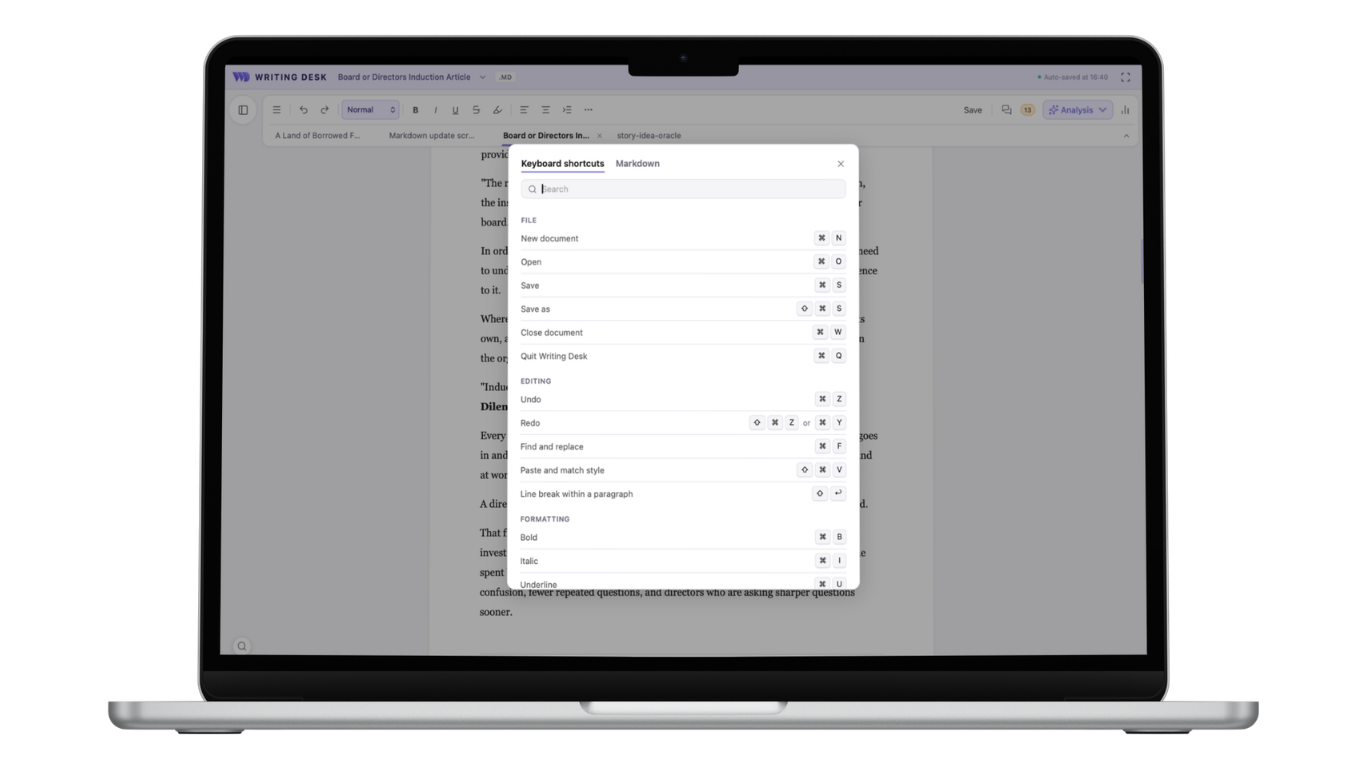
Writing Desk already had some keyboard shortcuts, but we’ve expanded the list and made them easy to find. Press ⌘/ for a searchable list of every shortcut, from formatting to switching tabs.
This update also adds new ones, including:
| Shortcut | What it does |
|---|---|
| ⌘K | Add or edit a link |
| ⇧⌘F | Enter or leave Focus Mode |
| ⌃⌘S | Show or hide the sidebar |
| ⇧⌘] and ⇧⌘[ | Next and previous tab |
| ⌥⌘M | New comment on the selection |
| ⇧⌘K | Research Assistant |
A fresh look
We’ve redesigned Writing Desk to give your writing more room. The workspace now sits on soft, floating panels, with a cleaner set of icons throughout. The sidebar and tab row tuck away when you want to focus (press ⇧⌘F for Focus Mode), and you can switch between open documents straight from the file title.
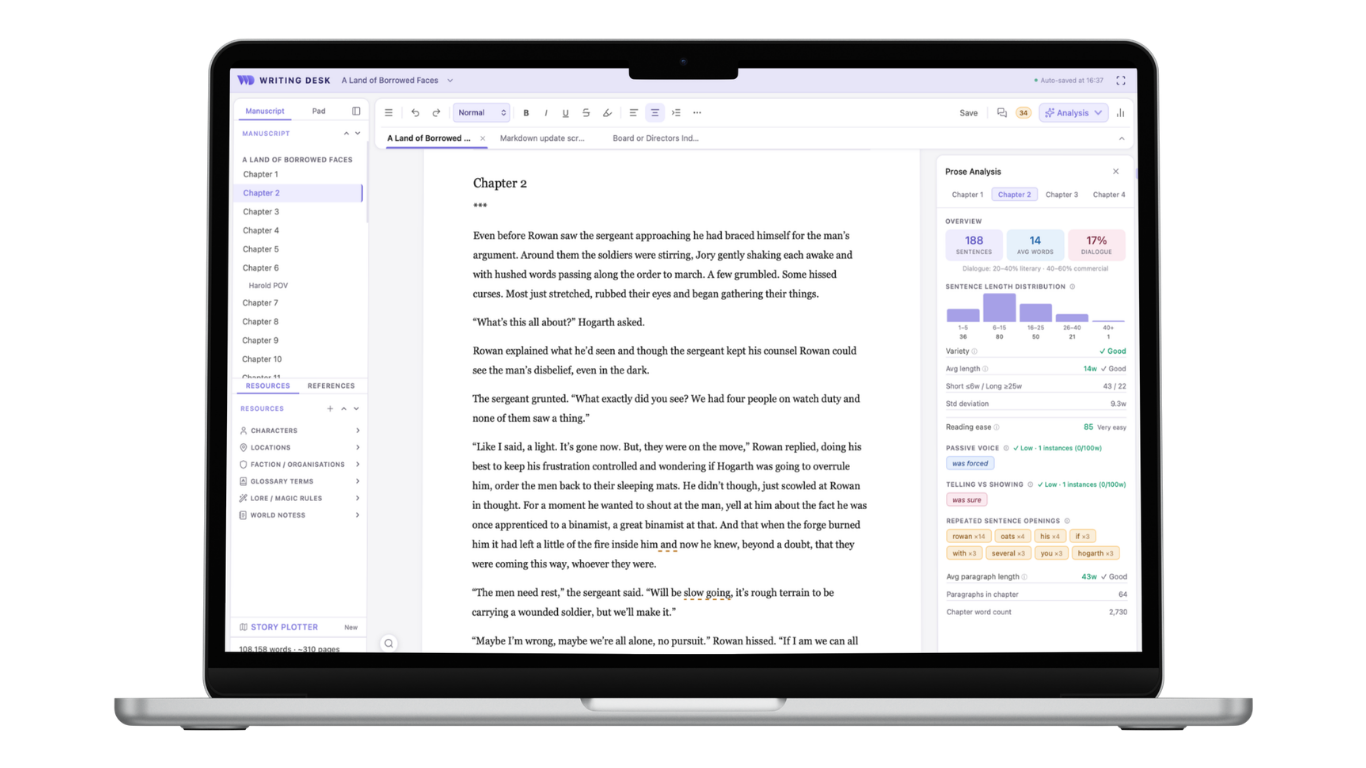
You’ll also spot our new logo, a purple “WD” monogram, across the app, the Formatter and the website.
Also in this update
- Headings keep their styles when you export to Word and open the file again, in Word, Google Docs or Writing Desk.
- Underlined text now comes through when you open a Word file.
- Images already in your Markdown files show in the editor. Full image support for documents is coming soon.
- Renaming a document can no longer replace another file with the same name.
- Writing Desk’s own dialogs are now used throughout the app.
- Security improvements across the app.
How to update
Writing Desk will prompt you to update the next time you open it. The Formatter updates automatically.
New to Writing Desk? Download it for free and start with our guide to writing your first essay or blog post.
We’d love to hear what you write with it. Get in touch and tell us what you’re working on.
Choosing writing software? See the best Markdown writing apps, the best apps for essays and long-form non-fiction and the best writing apps for blogging and articles.

The writing app built for novelists.
Plot, draft, edit, and format your manuscript in one private, local app for Mac. Free to download. Nothing leaves your Mac unless you choose to sync it.
macOS 13 Ventura or later · No account required